Out now - ChkSkins - We share our skins!

By FoolTrottel, Nov 8, 2019 in IL-2 Sturmovik: Great Battles Series

Posted November 8, 2019 · edited Jun 9, 2020 by FoolTrottel


By downloading and installing and running ChkSkins, you can take part in this: "More Skins is good mkay..."


dd_ChkSkins - v0.97 - 2020/06/09
- Excluded skins will now be deleted from the Skault, should an older version of ChkSkins have added one of those.

dd_ChkSkins - v0.96 - 2020/05/22
- 4K is now checked at startup
- A log file is being created
- If a skin is in the list of excluded skins, it will be deleted, and not uploaded. This to prevent bad skins (ie. in the wrong a/c type folder) from spreading.


dd_ChkSkins - v0.91 - 2019/11/12
Unzip the contents into a seperate folder, use its own folder preferably.

First time run: Right click ChkSkins.exe, and select 'Run As Administrator'
(Not needed for subsequent runs, maybe if there's a new version)

+Allow it access through your FireWall.

+It will read the registry for your GBS installation folder. If it cannot do that, it will let you know how.
(I might be able to help you fix that)

+Same membership check as CheckMods had, so let me know if it pops up like that.

Operating it:
- Press AUTO MODE Button, and it will compare the skins and download and upload all in one go.
Afterwards, it will start comparing again, and download upload again, should it be neccesary (Failed downloads, 
or someone else has been adding a skin or two).

By using the 1. Start Compare, 2. Start Download and 3. Start Upload buttons, you can do this all step by step.

Special note on 'Only 4K Skins' check box: It will delete all locally found non-4K Skins! It will already start doing 
that once you press 'Start Compare', or 'Auto Mode'

If you always want to run it in 4K mode, then run the file Chk4KSkins.cmd, also found in the Zip file!

Exit button will close the programme :)
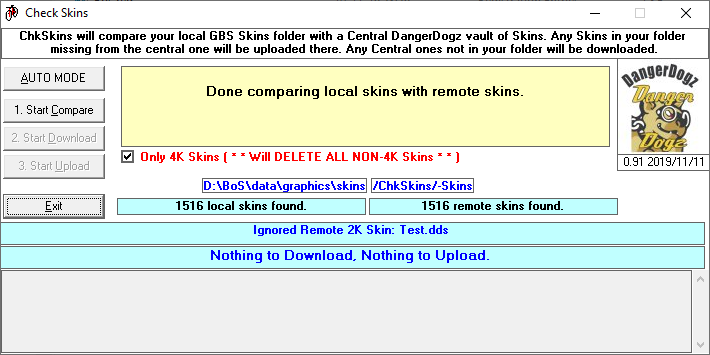
 

image.png


DD_ChkSkins.zip

Thanks 2

DD-Signature.jpg

Posted November 8, 2019

Thanks for your great program:salute:

image.png

siggy.jpg

Posted November 8, 2019

Thanks so much FT:goodjob::salute:

Posted November 8, 2019

Slight problem.  My skins folder - along with the game - is on my E drive and I'm getting an error message saying skin folder does not exist in on my C drive. 

gallery_440_79_39944.png
Posted November 8, 2019 · edited Nov 8, 2019 by fruitbat

A problem yes, but error no....... your skin folder doesn't exist on your C drive, so its perfectly correct:lol:


I know, i'm not being very helpful!!!

Like 1

large.DD-Signature.jpg.345348946893195d2fb36046bbc90daa.jpg.0269149e41488d6f21ef7162130cde40.jpg

B-52 Electronic Warfare Officer (EWO) veteran Jack Donovan’s natural response, when he was introduced to the tactics and mission details. His exact reply was: “you want me to fly in the back of a little tiny fighter aircraft with a crazy fighter pilot who thinks he’s invincible, home in on a SAM site in North Vietnam, and shoot it before it shoots me, you gotta be shitting me!

Posted November 9, 2019

@ Arthur, strange. My game and skins folder is also on the E drive but Checkskins found it

large.a_aniahco.GIFbeaufightersig.JPG


Posted November 9, 2019

Hmm...will try again later when I return from standing out here in the pissing down rain on a football field in Budleigh bloody Salterton.  Under 15’s footie sigh.....

gallery_440_79_39944.png
Posted November 9, 2019

Arthur I had the same issue as I had moved the install to the G drive. I asked FT and he said mine should read "G:\\Flight Sims\\1C Game Studios\\IL-2 Sturmovik Great Battles\\"  so swap the G for an E and you should be good to go.   If at start of 0.84 you get the 'Fix your registry error", then look at the file bos.reg, open it in Notepad.
Amend the path that in this example is pointing to ="C:\\BOS\\" to the path where your BOS is installed. (Just the main folder, do not point it to Skins)
Mind you, use the proper syntax, use two \\ in the path! Close notepad, double click bos.reg and confirm.

image.png

siggy.jpg

Posted November 9, 2019

Included in the zip is an example bos.reg.

ChkSkins reads from the registry where Bos was installed to, and yeah, if you simply moved it somewhere else without uninstalling and re-installing ... then it fails. Editing the .reg file and double clicking it will fix the registry entry and chkskins will run properly...

DD-Signature.jpg

Posted November 9, 2019 · edited Nov 9, 2019 by DD_Arthur

Not happening.  I think I'm having trouble with getting the correct syntax in the registry entry to find the right path.  Just to be awkward, my game is bolted into my pc thus;

E:\Program Files (x86)\1C Game Studios\IL-2 Sturmovik Battle of Moscow\data\graphics\skins

I think the question is how do I apply that path to the registry when I edit it in notepad?


Edit; Match abandoned after twenty minutes due to goalies becoming hypothermic. 

What a waste of a morning.....:huh:

gallery_440_79_39944.png
Posted November 9, 2019


E:\Program Files (x86)\1C Game Studios\IL-2 Sturmovik Battle of Moscow\data\graphics\skins

I think the question is how do I apply that path to the registry when I edit it in notepad?


Open the Check skin folder then double click the checkskins icon. It will run a regedit thing and thet should sort it

image.png

siggy.jpg

Posted November 9, 2019

Nope.....:unsure:

gallery_440_79_39944.png
Posted November 9, 2019

Duff info :icon_redface:....double click the BoS file

image.png

siggy.jpg

Posted November 9, 2019

Arthur, save the attached file, then double click on it ...

Bos.reg

DD-Signature.jpg

Posted November 9, 2019

Arthur I had the same issue as I had moved the install to the G drive. I asked FT and he said mine should read "G:\\Flight Sims\\1C Game Studios\\IL-2 Sturmovik Great Battles\\"  so swap the G for an E and you should be good to go.   If at start of 0.84 you get the 'Fix your registry error", then look at the file bos.reg, open it in Notepad.
Amend the path that in this example is pointing to ="C:\\BOS\\" to the path where your BOS is installed. (Just the main folder, do not point it to Skins)
Mind you, use the proper syntax, use two \\ in the path! Close notepad, double click bos.reg and confirm.

I had the same kind of issue Arthur, the fix posted by Crash above fixed it in a jiffy.

The line in question for mine looks like;

"InstallLocation"="E:\\IL-2 Sturmovik Great Battles\\"

new sig copy.jpg

Posted November 9, 2019

Cant wait to see how many new skins will appear :)

image.png

siggy.jpg

Posted November 9, 2019

Arthur, save the attached file, then double click on it ...

Ah...thankyou FT.  That almost did the trick:goodjob: Now getting a message sayin'

You cannot be verified as a member of the Dangerdogz. If you are a member, send a pm to FT mentioning this issue

:P 

gallery_440_79_39944.png
Posted November 9, 2019

Ah...thankyou FT.  That almost did the trick:goodjob: Now getting a message sayin'

You cannot be verified as a member of the Dangerdogz. If you are a member, send a pm to FT mentioning this issue

:P 

Fixed it!

DD-Signature.jpg

Posted November 9, 2019 · edited Nov 9, 2019 by DD_Arthur

Fixed it!

You did indeed!:salute:

It's now doing it thang'  608 local skins found and 1408 remote skins found.  No idea what this means but it does sound very impressive.:goodjob:

gallery_440_79_39944.png
Posted November 9, 2019

Ah...ok.  Have now halted the operation.  Before doing this I gave my skin folder a severe pruning to get rid of all the old, often 2k skins that I'm never going to use and didn't want to inflict on other peoples drives.

 I see my skin folder is now at 19gig and growing and is now filling with skins that others have d/l'd over the years and don't use either.

Thanks for your efforts FT but I don't think this is for me.:salute:

gallery_440_79_39944.png

Sign in to reply.